> ## Documentation Index
> Fetch the complete documentation index at: https://langchain-5e9cc07a-preview-opensw-1783454697-4d4e2b4.mintlify.site/llms.txt
> Use this file to discover all available pages before exploring further.

# Basic authentication with email and password

LangSmith supports login via username/password with a few limitations:

* You cannot change an existing installation from basic auth mode to OAuth with PKCE (deprecated) or vice versa - installations must be either one or the other. **A basic auth installation requires a completely fresh installation including a separate PostgreSQL database/schema, unless migrating from an existing `None` type installation (see below).**
* Users must be given their initial auto-generated password once they are invited. This password may be changed later by any Organization Admin.
* You cannot use both basic auth and OAuth with client secret at the same time.

## Requirements and features

* There is a single `Default` organization that is provisioned during initial installation, and creating additional organizations is not supported
* Your initial password (configured below) must be least 12 characters long and have at least one lowercase, uppercase, and symbol
* There are no strict requirements for the secret used for signing JWTs, but we recommend securely generating a string of at least 32 characters. For example: `openssl rand -base64 32`

### Migrating from none auth

**Only supported in versions 0.7 and above.**

Migrating an installation from [None](/langsmith/authentication-methods#none) auth mode replaces the single "default" user with a user with the configured credentials and keeps all existing resources. The single pre-existing workspace ID post-migration remains `00000000-0000-0000-0000-000000000000`, but everything else about the migrated installation is standard for a basic auth installation.

To migrate, simply update your configuration as shown below and run `helm upgrade` as usual.

### Configuration

<Note>
  Changing the JWT secret will log out your users
</Note>

```yaml Helm theme={null}
config:
  authType: mixed
  basicAuth:
    enabled: true
    initialOrgAdminEmail: <YOUR EMAIL ADDRESS>
    initialOrgAdminPassword: <PASSWORD> # Must be at least 12 characters long and have at least one lowercase, uppercase, and symbol
    jwtSecret: <SECRET>
```

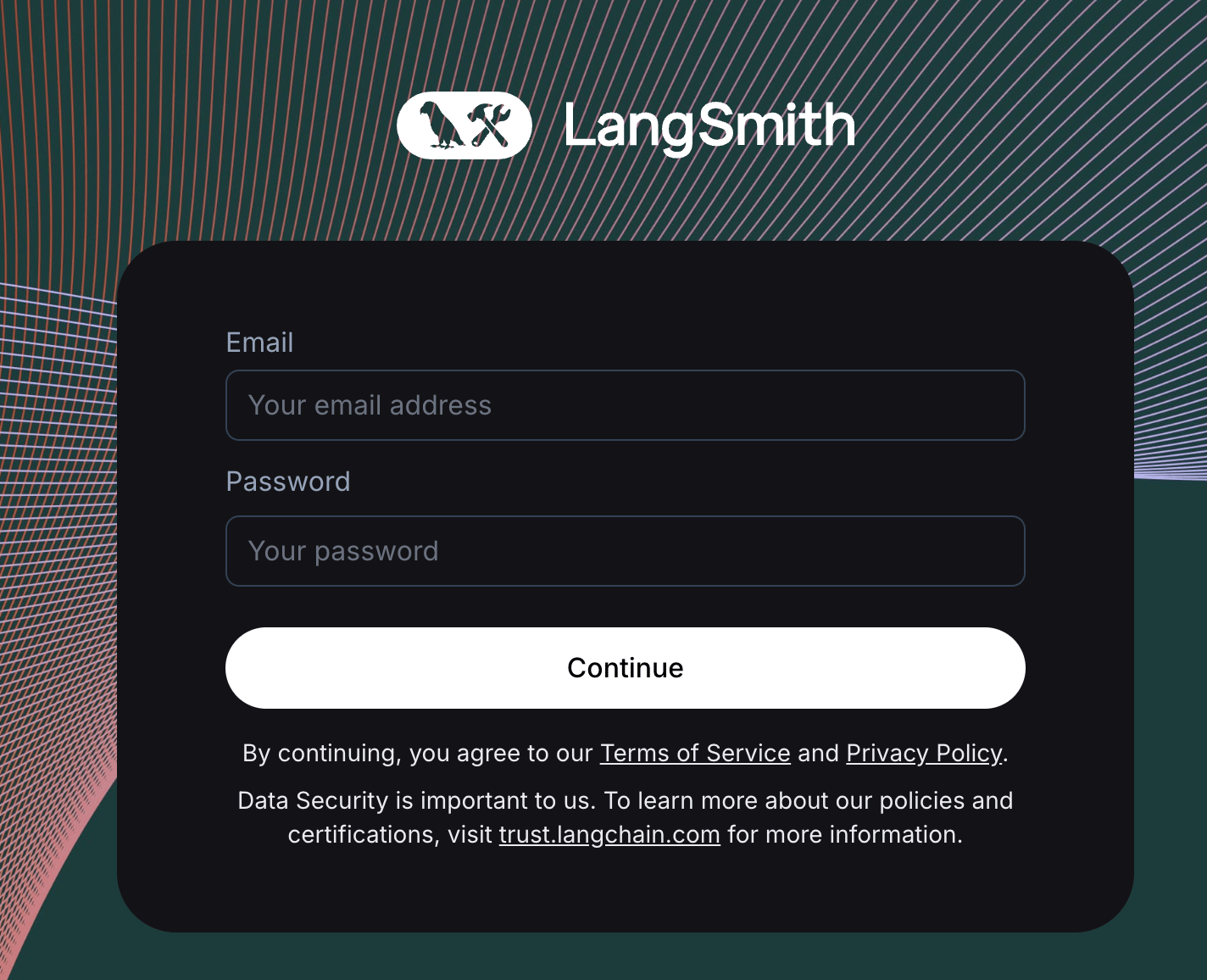
Once configured, you will see a login screen like the one below. You should be able to login with the `initialOrgAdminEmail` and `initialOrgAdminPassword` values, and your user will be auto-provisioned with role `Organization Admin`. See the [admin guide](/langsmith/administration-overview#organization-roles) for more details on organization roles.
<img src="https://mintcdn.com/langchain-5e9cc07a-preview-opensw-1783454697-4d4e2b4/1_cjRy1qGL-8Pj6o/langsmith/images/langsmith-ui-basic-auth.png?fit=max&auto=format&n=1_cjRy1qGL-8Pj6o&q=85&s=0a4f2cc1d71172ddcdcabc9d0a05039d" alt="LangSmith UI with basic auth" width="1424" height="1156" data-path="langsmith/images/langsmith-ui-basic-auth.png" />

***

<div className="source-links">
  <Callout icon="terminal-2">
    [Connect these docs](/use-these-docs) to Claude, VSCode, and more via MCP for real-time answers.
  </Callout>

  <Callout icon="edit">
    [Edit this page on GitHub](https://github.com/langchain-ai/docs/edit/main/src/langsmith/self-host-basic-auth.mdx) or [file an issue](https://github.com/langchain-ai/docs/issues/new/choose).
  </Callout>
</div>
